Sending a PDF as an attachment is fine until the document needs to behave like a link.
A recruiter wants to open a resume on a phone. A restaurant needs a QR menu that does not require an app. A product team wants a manual linked from packaging. A consultant needs one clean URL for a whitepaper, proposal, or event handout. A school or community group needs a document page people can revisit without searching through email.
That is the job of a PDF link: make a document open like part of the web.
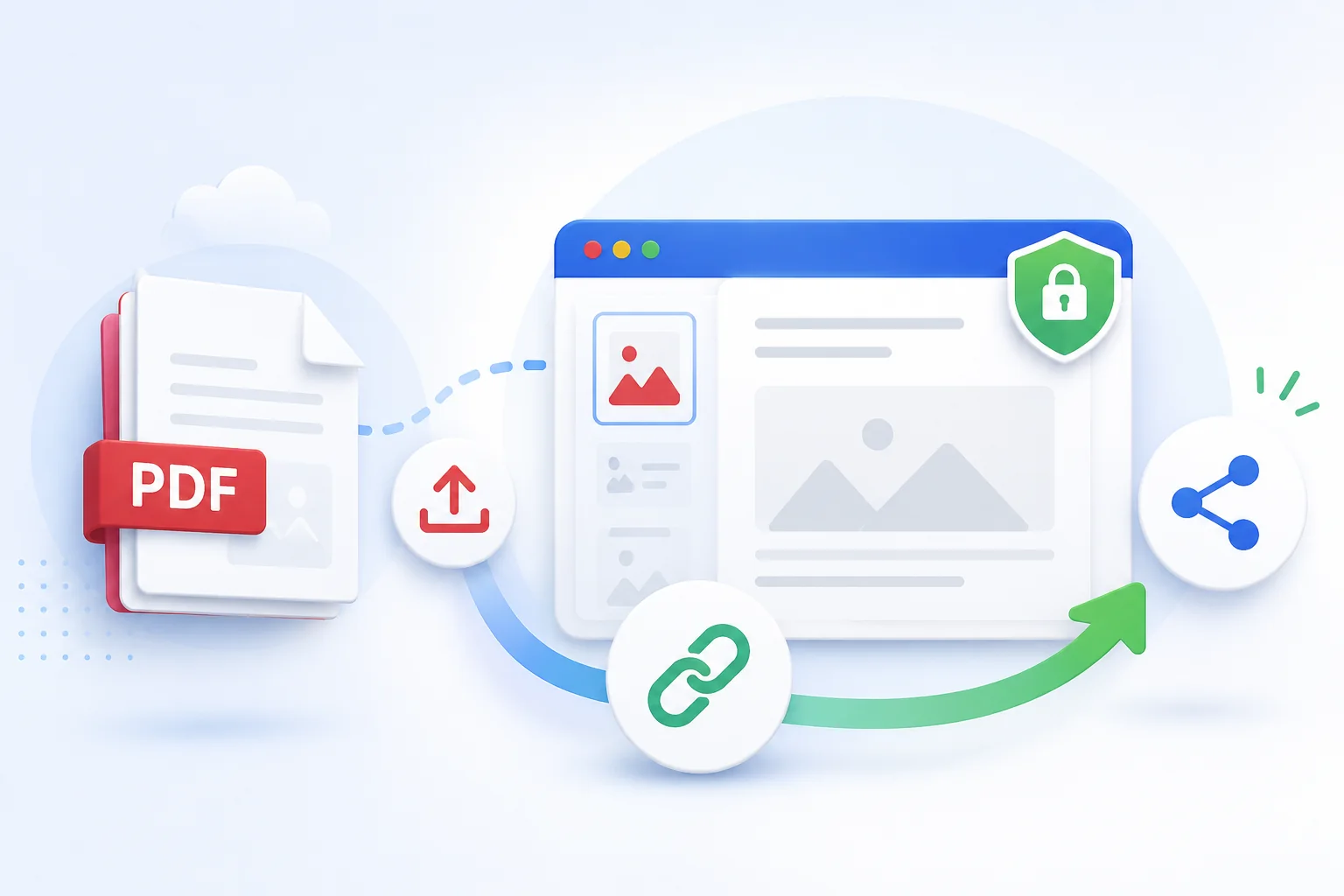
What “PDF to link” should actually mean
There are several ways to share a PDF. They do not feel the same to the person opening it.
| Method | Good for | Tradeoff |
|---|---|---|
| Email attachment | One person, one message, formal file submission | Hard to update, easy to forward old versions, poor for QR codes. |
| Cloud drive share | Collaboration, private file storage, folders | Often adds permission screens, branding, or download-first behavior. |
| Website page with PDF | Public document hub, context around the file | Takes more setup if you only need the document link. |
| Direct hosted PDF link | QR menus, resumes, manuals, handouts, public docs | Must treat the document as public unless separately protected. |
For many workflows, the best link is boring: a stable HTTPS URL that opens in the browser, uses a readable filename, works from a QR code, and does not force visitors through a cloud storage interface.
Common workflows for PDF links
The right PDF link depends on how the document will travel.
| Workflow | What matters most |
|---|---|
| Resume or CV | Opens quickly on mobile, has a professional filename, can be paired with an online resume page. |
| Menu or price sheet | Works from a QR code, loads on weak mobile connections, avoids huge scanned images. |
| Product manual | Stable URL, clear versioning, easy placement on packaging or support pages. |
| Whitepaper or guide | Trustworthy URL, shareable in email and campaigns, enough context around the document. |
| Event handout | Easy to scan from signage, readable on phones, stable after the event. |
| Internal or client document | Should not be published publicly unless the content is safe to circulate. |
The mistake is treating all PDFs as the same. A legal contract, a public menu, a resume, and a product manual have different risk profiles even though they use the same file format.
Prepare the PDF before uploading
A PDF can be technically online and still feel bad to open.
Before turning the file into a link, check the basics:
- Compress image-heavy PDFs, especially menus, catalogs, scanned pages, and slide decks.
- Use a readable filename such as
jane-doe-resume.pdf,spring-menu.pdf, orproduct-manual-v2.pdf. - Remove signatures, internal comments, private pricing, home addresses, and draft notes.
- Check that links inside the PDF still work.
- Open the file on a phone before sharing it widely.
- Keep a source copy so you can regenerate a clean version later.
Adobe documents PDF optimization options for reducing file size and improving compatibility. You do not need Acrobat for every workflow, but the principle matters: a public PDF should be small enough and clean enough for the audience that will open it.
Make browser preview more likely
Whether a PDF opens inline or downloads depends on browser behavior, user settings, and response headers.
The host should serve the file with the right media type. MDN lists .pdf as application/pdf, which is the expected content type for PDF documents. That does not force every browser to preview inline, but it gives the browser the correct signal.
If a PDF downloads instead of opening, check:
| Issue | What to check |
|---|---|
| Wrong content type | The file should be served as application/pdf. |
| Browser preference | Some users or managed devices force downloads. |
| File size | Very large PDFs may feel like a failed preview on mobile. |
| File corruption | Re-export the document and test in more than one browser. |
| Password inside the PDF | Encrypted PDFs may prompt for a document password before viewing. |
Do not promise that every device will behave identically. Aim for the link to be compatible, direct, and easy to test.
Public PDFs can be discovered
A public PDF link should be treated as public information.
Google documents that it can index many file types, including PDFs. Search behavior depends on crawling, linking, metadata, and site context, but the safe assumption is simple: if a confidential PDF is on a public URL, it may be found, forwarded, saved, or indexed.
Use this rule:
| Document type | Safer sharing choice |
|---|---|
| Public menu, brochure, manual, event handout | Public PDF link is usually fine. |
| Resume | Public link can work, but remove private address and personal details you do not want forwarded. |
| Proposal or deck | Use a public-safe version, or protect access if it should stay limited. |
| Internal pricing, contracts, customer data | Do not publish as an open PDF link. |
| Sensitive scanned paperwork | Redact or choose a private document workflow instead. |
Password-protecting the PDF itself is different from protecting the web link. If a PDF is encrypted, the browser may ask for the document password. If the hosting project is password-protected, the site can require access before the PDF is served. Choose the layer that matches the risk.
QR codes make PDF hygiene more important
PDF links often end up in the physical world.
Once a QR code is printed on a menu, poster, package, badge, classroom handout, or event sign, small mistakes become expensive. People may scan from older phones, bad lighting, weak networks, or crowded venues.
Before printing at scale:
- Scan the QR code on iPhone and Android.
- Test over mobile data, not only office Wi-Fi.
- Confirm the PDF opens without a login prompt.
- Check the first page at phone width.
- Make sure the file is not too large for the setting.
- Use a custom domain or readable URL if trust matters.
- Decide whether the link should always point to the latest version or a dated version.
For menus, event schedules, instructions, and public handouts, a fast link matters more than a perfect desktop PDF layout.
Versioning: latest link or historical files?
PDFs create version confusion quickly.
Sometimes you want one canonical link that always opens the latest file. Sometimes each document version must stay available for records.
| Versioning pattern | Use when | Example |
|---|---|---|
| One stable link | The audience should always see the latest document. | menu.pdf, resume.pdf, product-guide.pdf |
| Versioned filename | Old versions may need to remain distinct. | product-manual-v2.pdf, event-schedule-2026.pdf |
| Page plus PDF | You need context, update notes, multiple files, or translations. | /docs/product-guide with download links |
For documents that circulate by email or QR code, decide the versioning rule before the link spreads. Otherwise people keep opening a file called final-final-3.pdf long after it stops being final.
Where DeployPages fits
DeployPages supports PDF files as part of the same static publishing workflow used for HTML folders, ZIP archives, framework builds, and exported sites.
You can upload a PDF and publish it as a browser link for resumes, menus, whitepapers, manuals, handouts, QR codes, and document pages. As the document workflow grows, the same project can use custom domains, analytics, password protection, instant rollback, and CLI deploys.
Start from PDF hosting when you only need to turn a document into a link. If the PDF belongs inside a broader professional page, see resume hosting, portfolio hosting, or HTML deployment.
PDF-to-link checklist
Before sharing the link:
- Rename the file with a readable, durable filename.
- Compress the PDF if it contains large images or scanned pages.
- Remove private information, comments, signatures, and internal notes.
- Test browser preview on desktop and mobile.
- Open the link from a private browser window.
- Scan the QR code if the link will be printed.
- Decide whether the URL should be latest-version or version-specific.
- Add a custom domain when the document represents a business, event, or professional identity.
- Use analytics to see whether the link is actually being opened.
A PDF link is not just file storage. It is a small public web surface. Treat it with the same care you would give a page that customers, recruiters, guests, or students may open first.